Accessing the gateway
You can access the gateway either using the web interface or by SSH. Use the web interface for general configuration. SSH is for advanced users.
The web interface and SSH can be accessed using ethernet network connection. On the ethernet miro Edge is configured to support two independent network configurations:
- static, non-changeable IPv4 address 169.254.100.100
- Freely user-assignable IP address (static or DHCP) with the default set to DHCP
Gateway connected directly to your computer
Connect the gateway
Connect the gateway to your computer using an ethernet cable
Configure your IP address
Change your computer's IP address to a static address in the same network as the gateway.
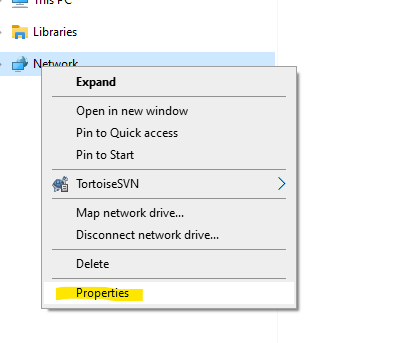
In Windows 10 right-click on Network in explorer and select properties
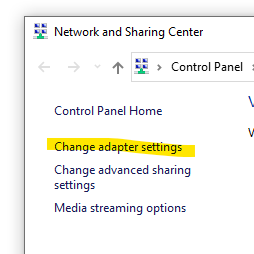
In Network and Sharing Center select Change adapter settings
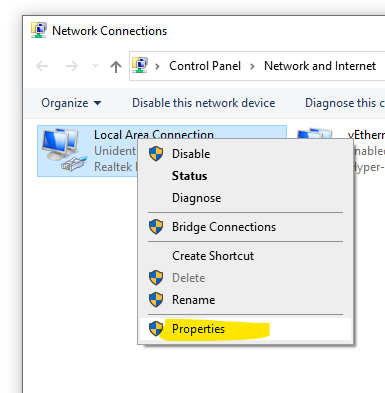
In Network Connections select and right-click your Local Area Connection and select Properties
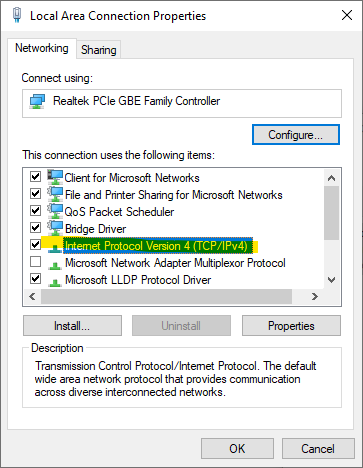
In Local Area Connection Properties select Internet Protocol Version 4 and click the Properties button.
In Internet Protocol Version 4 Properties configure the IP address to set:
- IP address 169.254.100.101
- Subnet mask to 255.255.255.0
- Default gateway to 169.254.100.100
- DNS configuration can be left blank
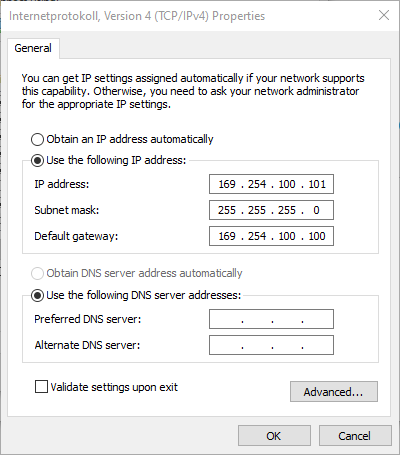
Click Ok and close all open dialogs. Your computer's network is now connected to the miro Edge gateway.
Important
Don't forget to change back your network configuration when you have finished configuring the gateway!
Gateway connected to your local network
To access the web interface of a gateway connected to your local network, your network needs to have a DHCP server, and you have to find out your gateway's dynamic IP assigned by the DHCP server.
Default Password
Each gateway has its own random password with at least 15 characters. It is printed on the label of the gateway.
| User name | Password |
|---|---|
| root | as printed on the label |
Gateways updated from firmware 2.6 keep their previous password.
When you change the password under System->Administration, the web interface requires at least 15 characters. Do not reuse passwords of other devices.
During production, the password for web interface and SSH access are set to a default. The default credentials are:
| User name | Password |
|---|---|
| root | miromac address |
Replace the mac address part with the last 6 digits of the gateway MAC address. All characters should be in lower case and without any separator (e.g. ':'). The MAC address can be found on the label on the back of the housing. E.g., if your gateway's mac address is 7D:B5:B8:55:F6:A5, your password would be miro55f6a5.
Important
For security reasons, it is strongly recommended to change the gateway’s default password under System->Administration
Accessing the web interface
To access the web interface, use either the static or the DHCP assigned IP depending on your connection method.
Login
The web interface is only available over HTTPS. Open
https://169.254.100.100 in case of direct connection, or https:// followed by the
DHCP assigned IP address. Addresses starting with http:// are redirected to HTTPS.
The gateway uses a certificate that it creates itself, so your browser shows a warning when you connect for the first time. Accept the certificate only on a network you trust, and keep the exception in your browser: a new warning later can indicate an attack.
At your first login, use the password from the label.
To log in access the web frontend of the gateway using your browser. The web frontend is reachable on http://169.254.100.100 in case of direct connection.
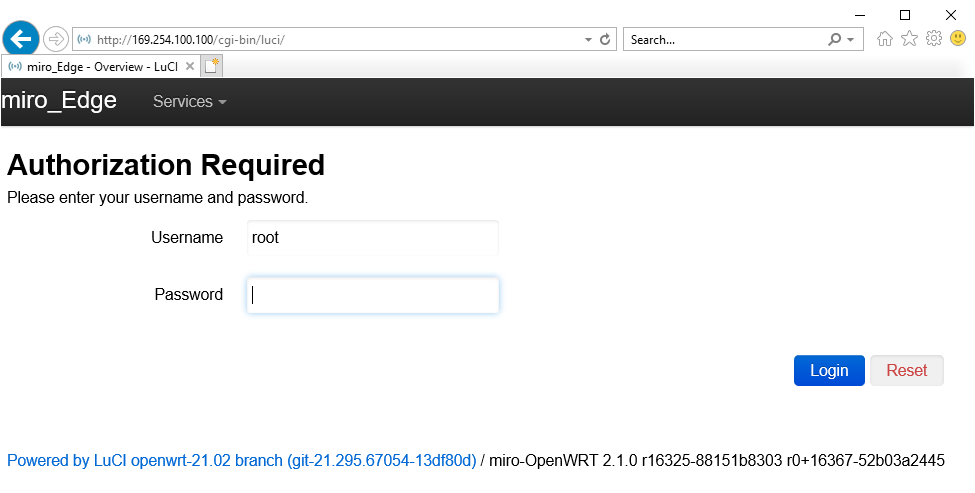
At your first login, use default credentials.
SSH Access
To access the gateway by SSH use either the static or the DHCP assigned IP depending on your connection method.
Use an SSH terminal (such as PuTTY) to login using the default credentials.
You can log in with the password or with an SSH key. Add your public key under System->Administration->SSH-Keys; Ed25519 keys are recommended. After hardening, SSH accepts keys only.
To slow down password guessing, the gateway accepts at most 3 login attempts per connection and blocks a source
address for a few minutes when it opens more than 10 new SSH connections at once or more than 5 per minute
afterwards. Scripts and automation tools should reuse one connection (OpenSSH option ControlMaster) or space
their connections out.
Log in with the password.
Warning
SSH access is for advanced users only. There is a risk of rendering the devices unusable!