Management
The Management page covers system information, firmware updates, remote device management, and SSH access configuration. It is organized into three tabs: System, Remote Management, and SSH.
System
The System tab shows device information and provides firmware update functionality.

Device Information
| Field | Description |
|---|---|
| Firmware Version | Currently installed firmware version |
| Hardware ID | Identifier of the current hardware revision |
Firmware Update
Firmware is updated using RAUC with A/B partitioning, ensuring a safe rollback if an update fails.
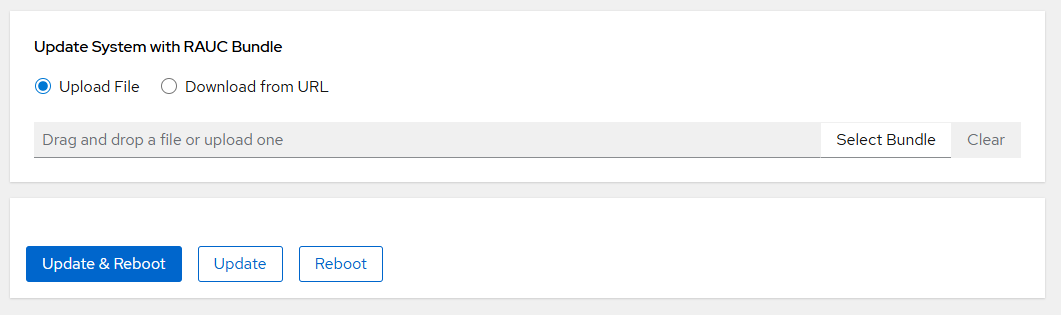
Two methods are available:
Upload File
Upload a RAUC bundle (.raucb) directly from your computer.
Download from URL
Provide an HTTPS URL to a RAUC bundle. The gateway will download and install it.
Note
HTTPS is supported. The server certificate is verified against the device's built-in system trust store. There is currently no way to add a custom CA certificate through the interface, so the bundle server must use a certificate issued by a publicly trusted CA.
Update Actions
| Button | Description |
|---|---|
| Update & Reboot | Install the firmware and reboot immediately |
| Update | Install the firmware; reboot later |
| Reboot | Reboot the device without updating |
Remote Management
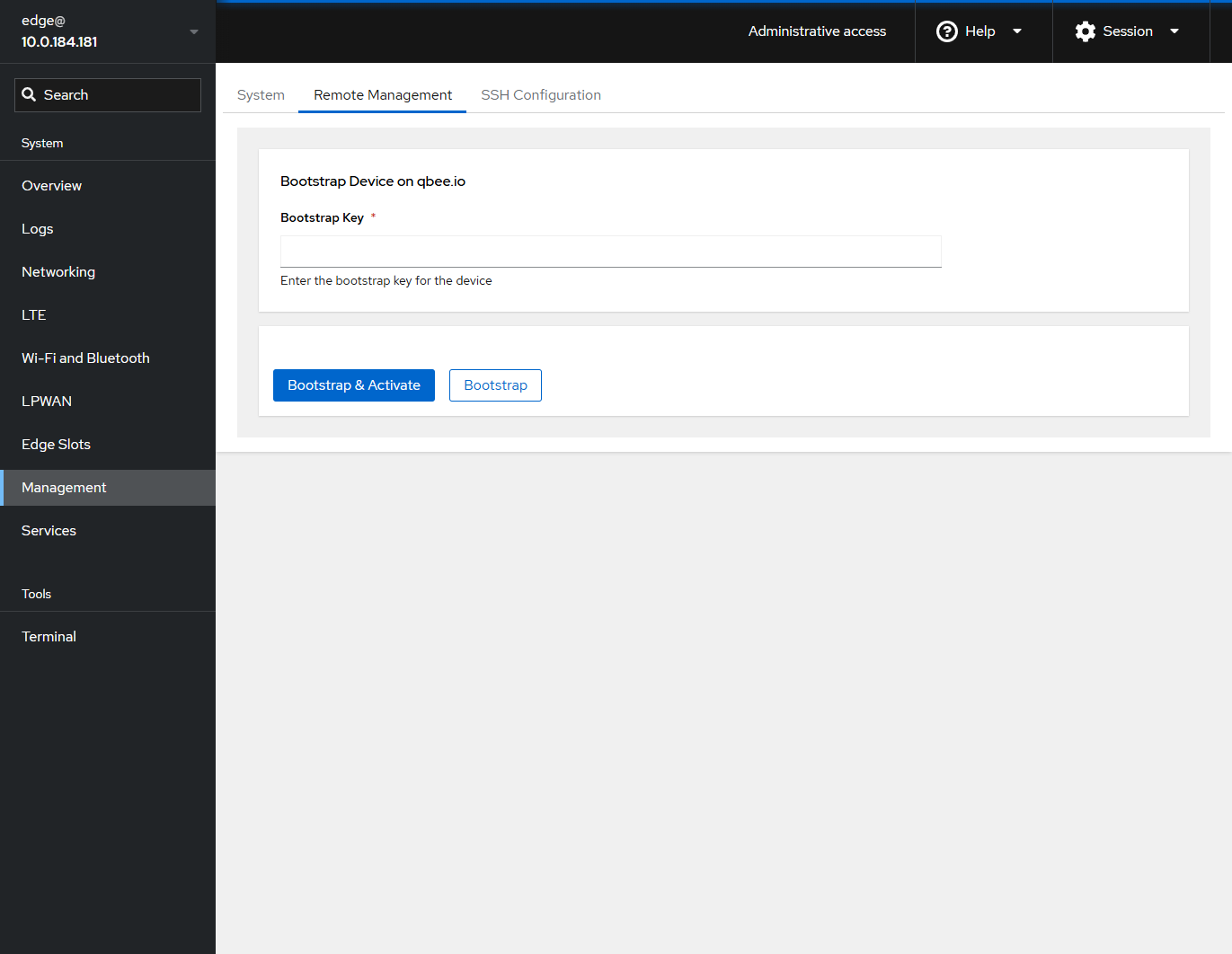
The Remote Management tab configures the qbee.io agent for secure remote device management.
| Parameter | Description |
|---|---|
| Bootstrap Key | API key from your qbee.io account used to register this device |
| Button | Description |
|---|---|
| Bootstrap & Activate | Register the device with qbee and activate it immediately |
| Bootstrap | Register the device without activating |
Note
After bootstrapping, the device will appear in your qbee.io device inventory and can be managed remotely.
SSH
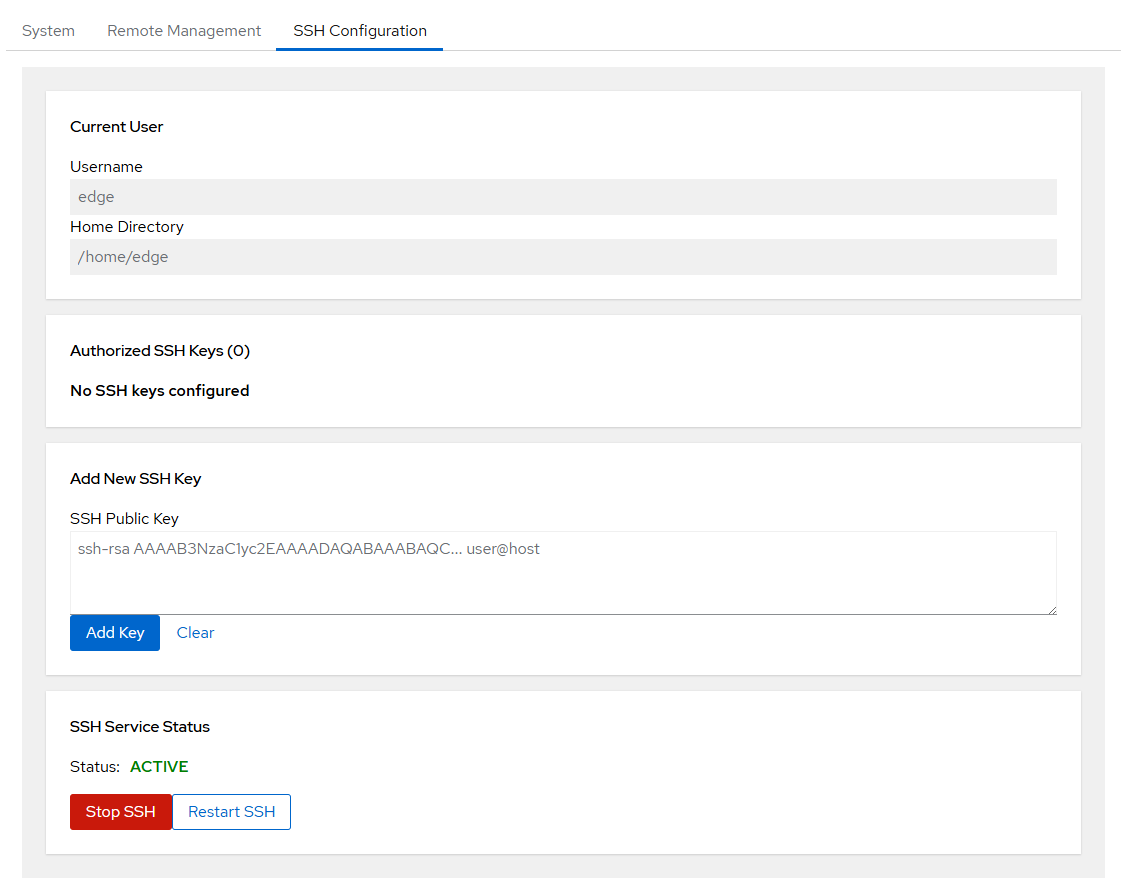
The SSH tab manages SSH public key authentication and controls the SSH service.
Note
SSH is disabled by default. It must be explicitly started here before SSH access is possible. See Device Security for the security rationale and recommendations.
SSH Keys
Add or remove authorized SSH public keys for the current user. Supported key types:
ssh-rsassh-ed25519ecdsa-sha2-*
SSH Service
| Button | Description |
|---|---|
| Start SSH | Start the SSH service |
| Stop SSH | Stop the SSH service |
| Restart SSH | Restart the SSH service |
The current service status (active / inactive) is shown next to the controls.
Warning
Stopping SSH while connected via SSH will terminate your session. Ensure you have an alternative access method before stopping the service.